
Changing The Color of Store Pop Ups
Hey guys, in today's video, I'm going to be showing you how to affect the colours in your store have the popup boxes, and the selection boxes once a user selects, for example, a particular order or a particular product in the cart.
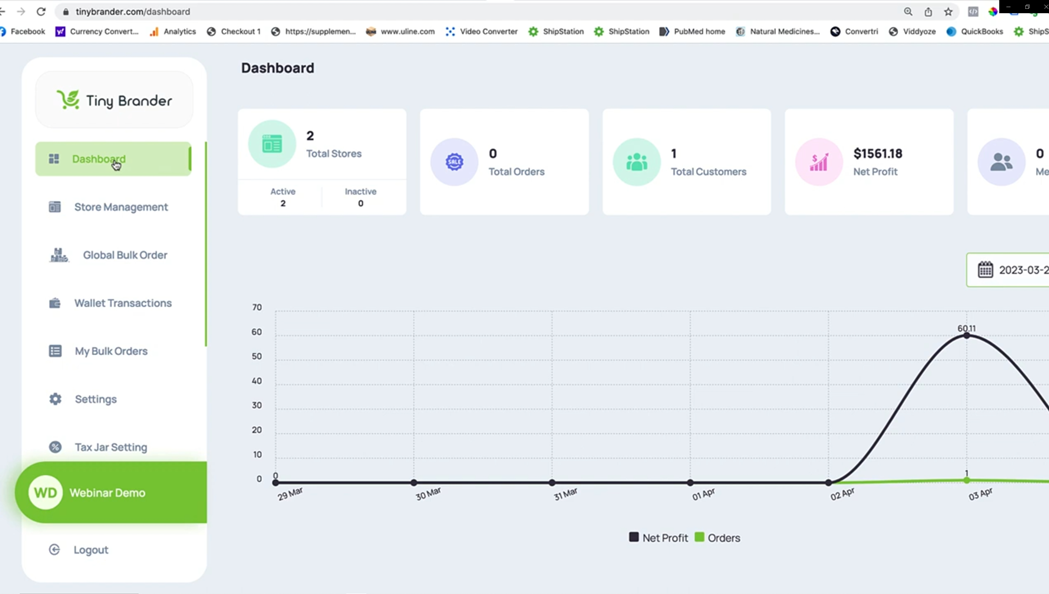
So I have it all up on the big screen here. Let's go take a look. So if we go into store management in this test store, and I'm going to do a couple of things here.

If we go into just this store, what I'm going to do is I'm just going to open up this site link in a separate window.
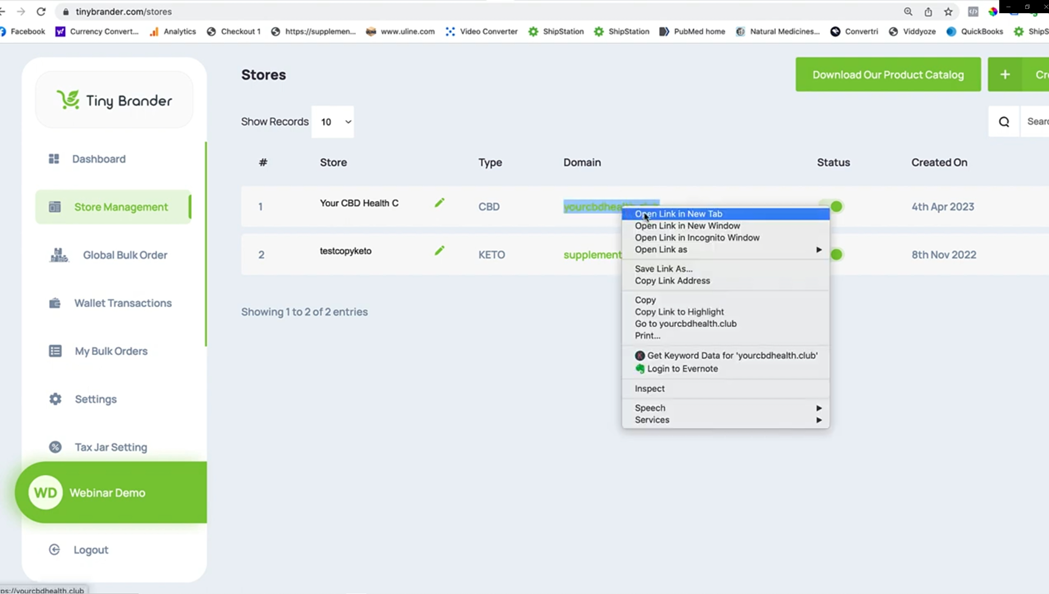
Okay, that's open. And then I'm going to go into the actual settings.

The only reason for you opening up that site in a separate window so that we can see the changes that we affect.
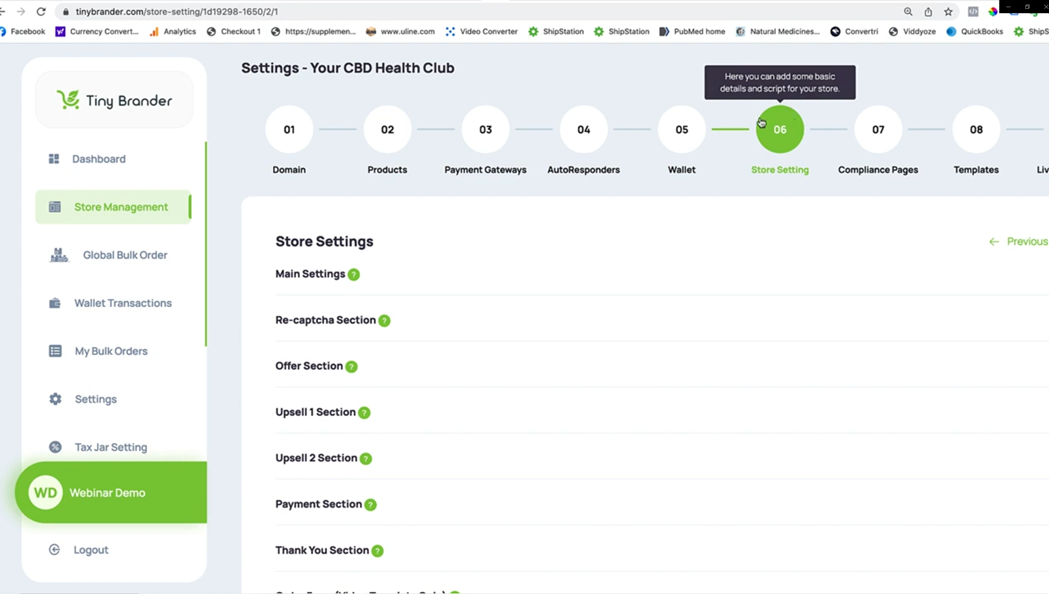
So if I go into settings, and if I go down in Section six restore settings down to where we have the main settings first.
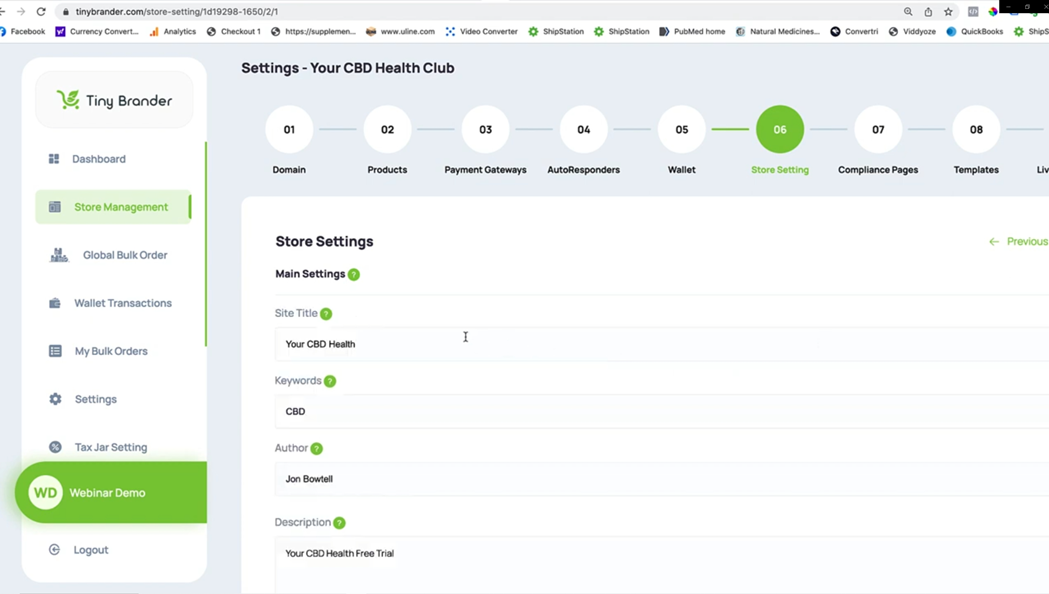
And you can see if I go down here…

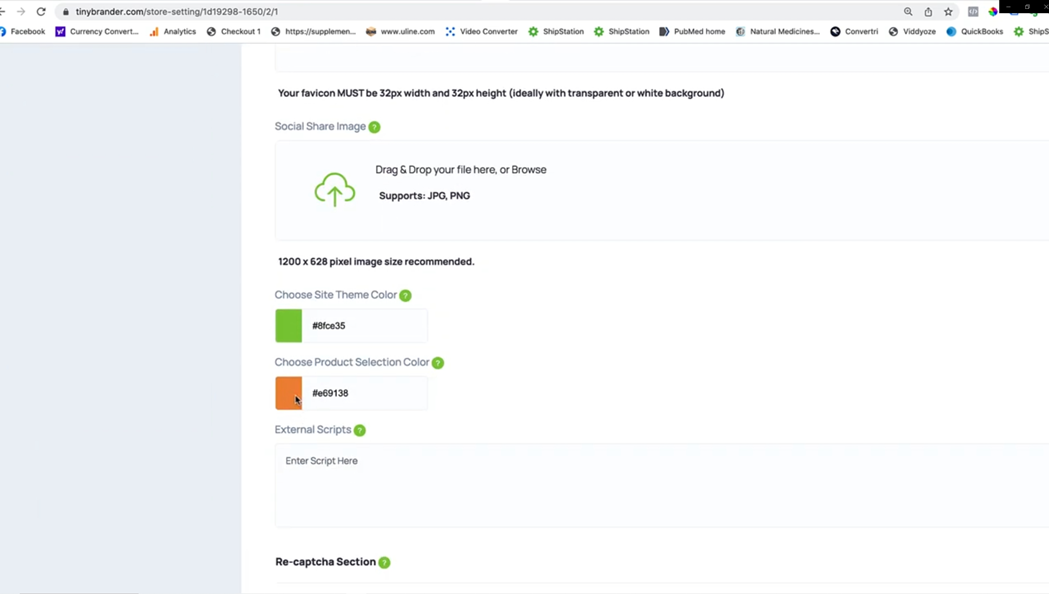
…okay, that we have a site theme colour in this green colour, and let me just choose a separate colour.
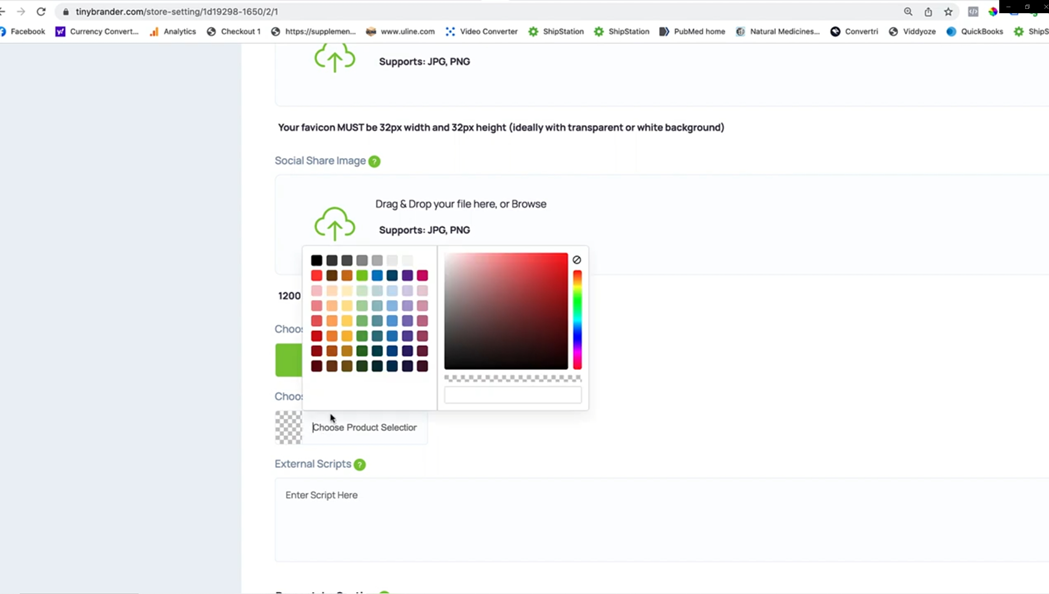
For the Product Selector. Let's choose like this orange colour.

Okay, so these are the two colours that I've now selected, I'm just going to hit save on that.

So if I go across to that store, so if I go and just fill this, these details in, quickly…
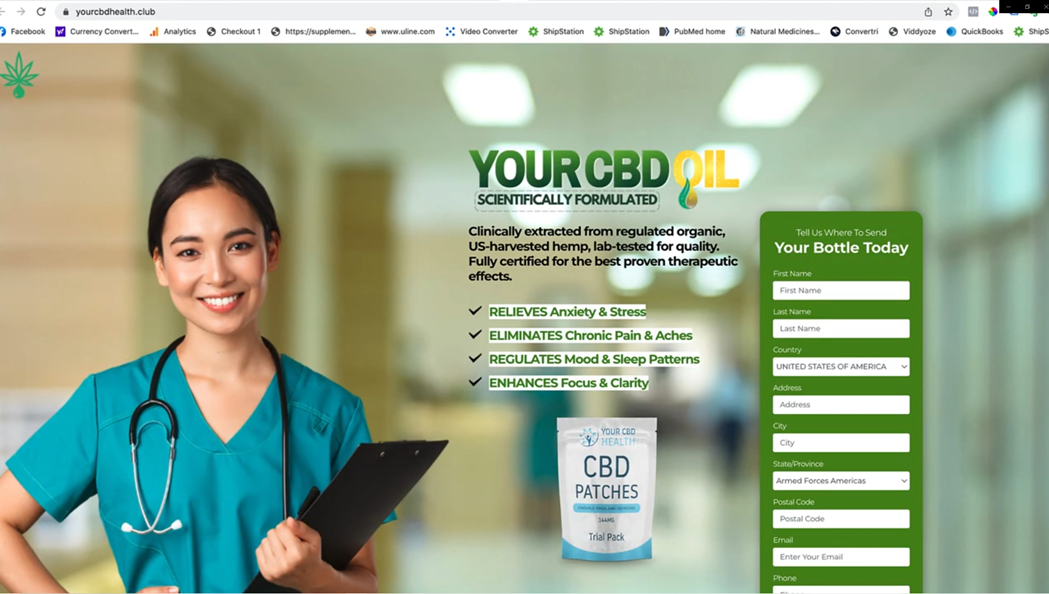
…and hit rush my order, and we'll see where those site colours pop up.
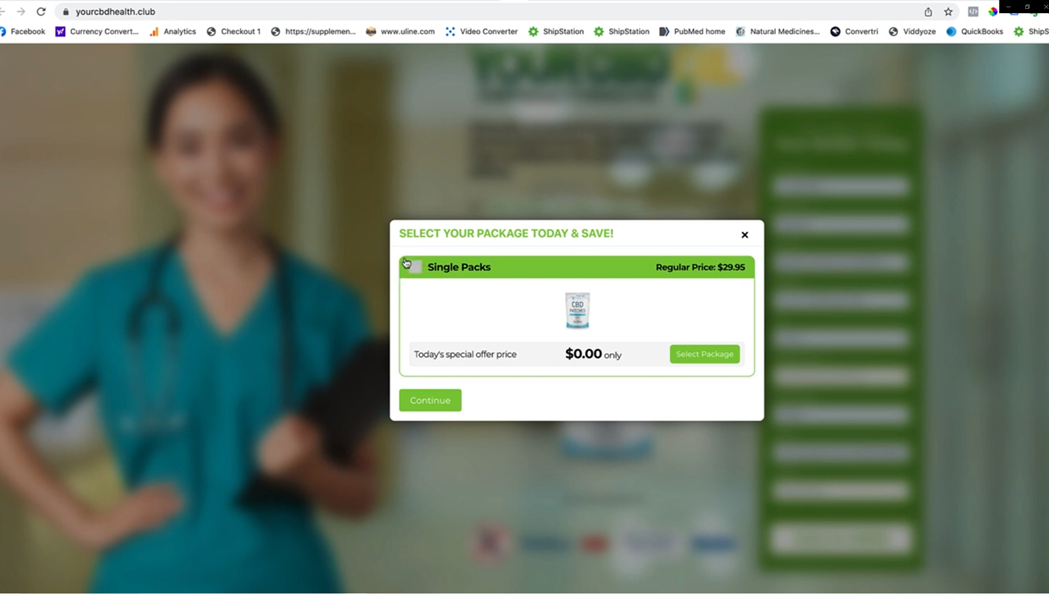
So if I go ahead and then select that, you can see that comes up with that orange colour right there.
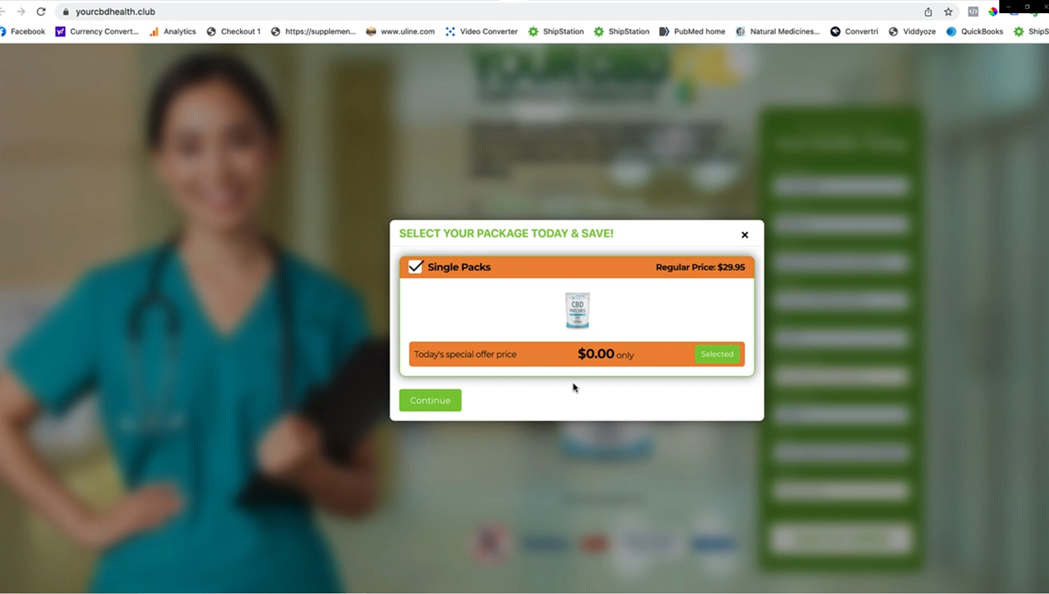
So let me just unselect that. And let me show you what happens if we go back here…
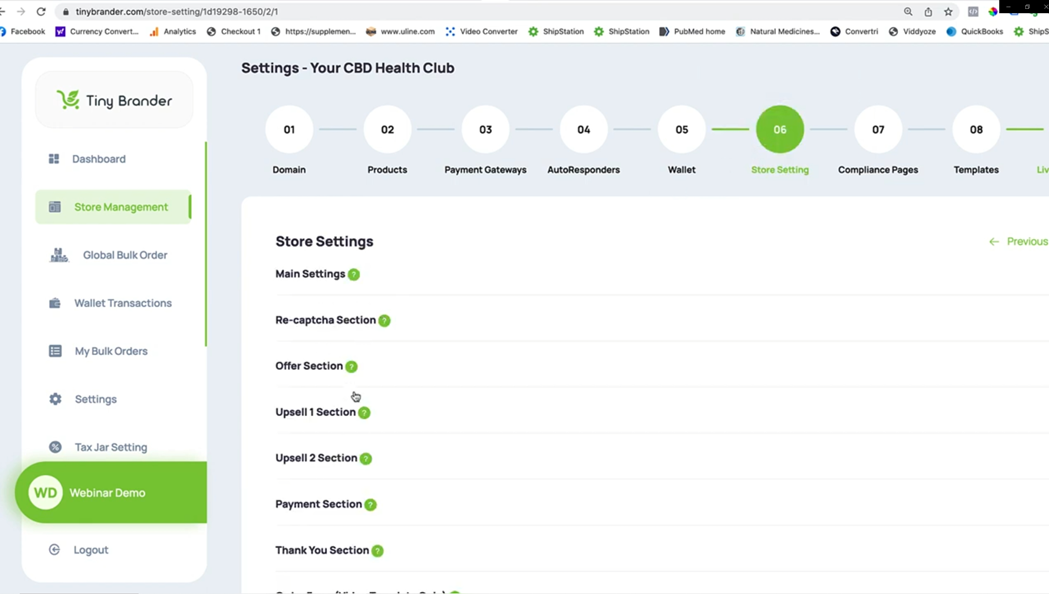
…you got to store settings. And we're already in the main settings.
So we can change that to something like a transparent colour, like that.
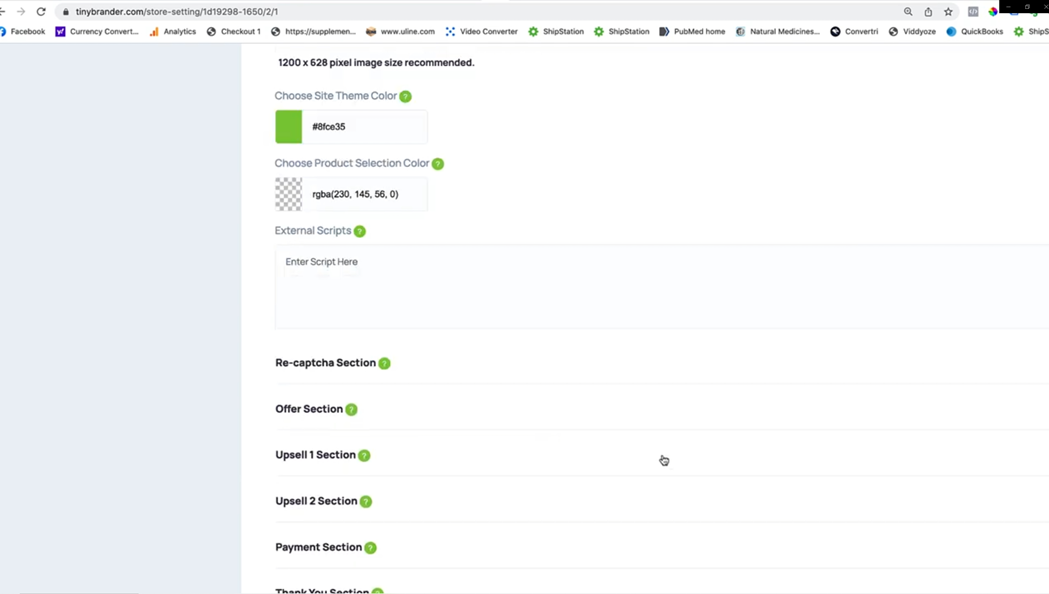
And if I just hit save on that.
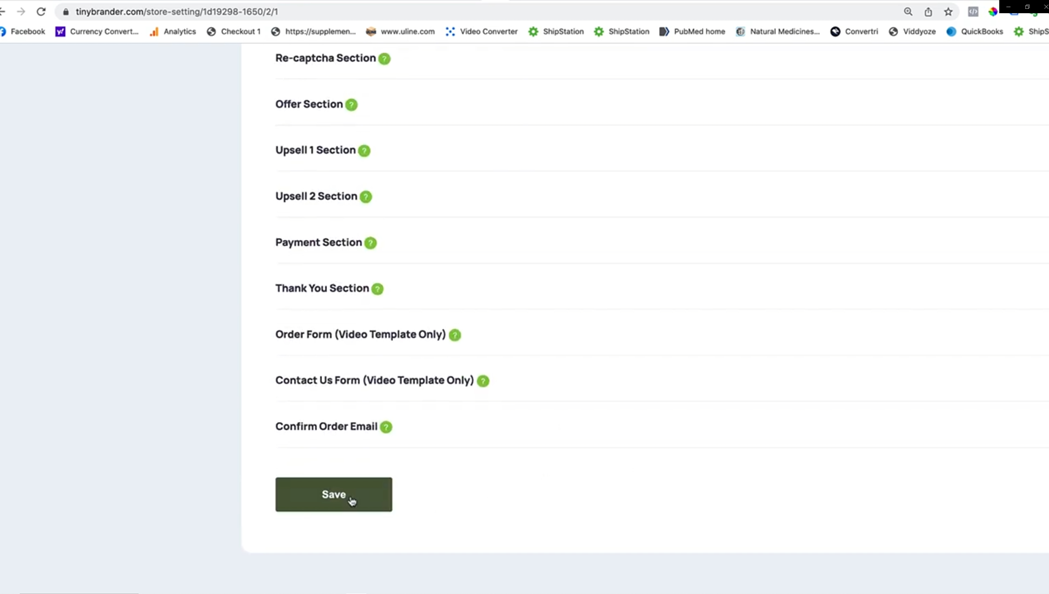
You'll see the colour take effect…
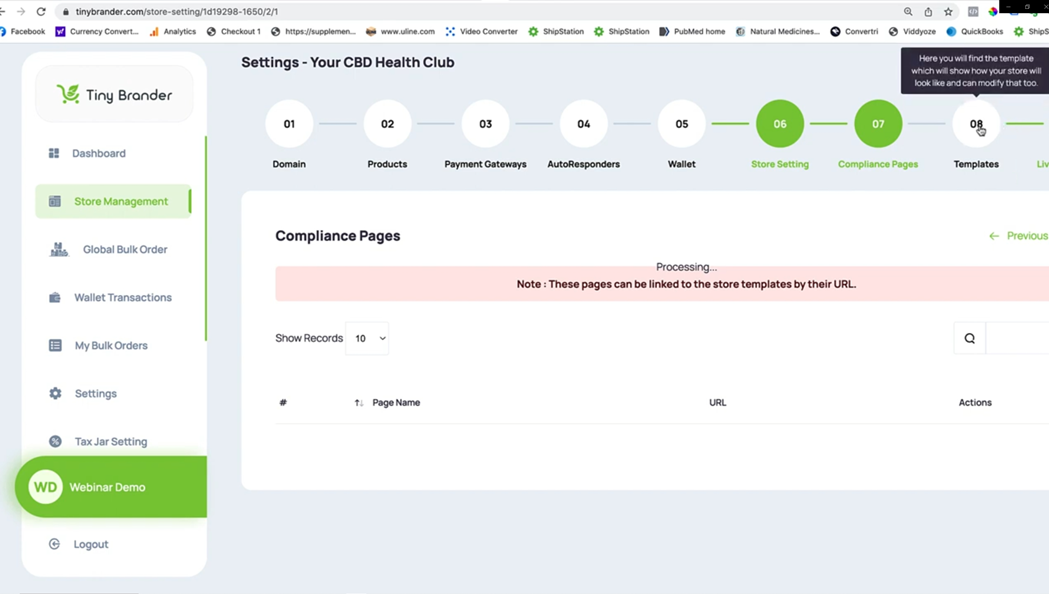
I just need to republish the store again, so I just have to go back to the template.

Go into the template…

…and hit save and publish and then those changes will make effect.
So if I just hit save and publish so when that finishes saving, then the new changes will make effect on the live site and we'll hop along there to take a look.
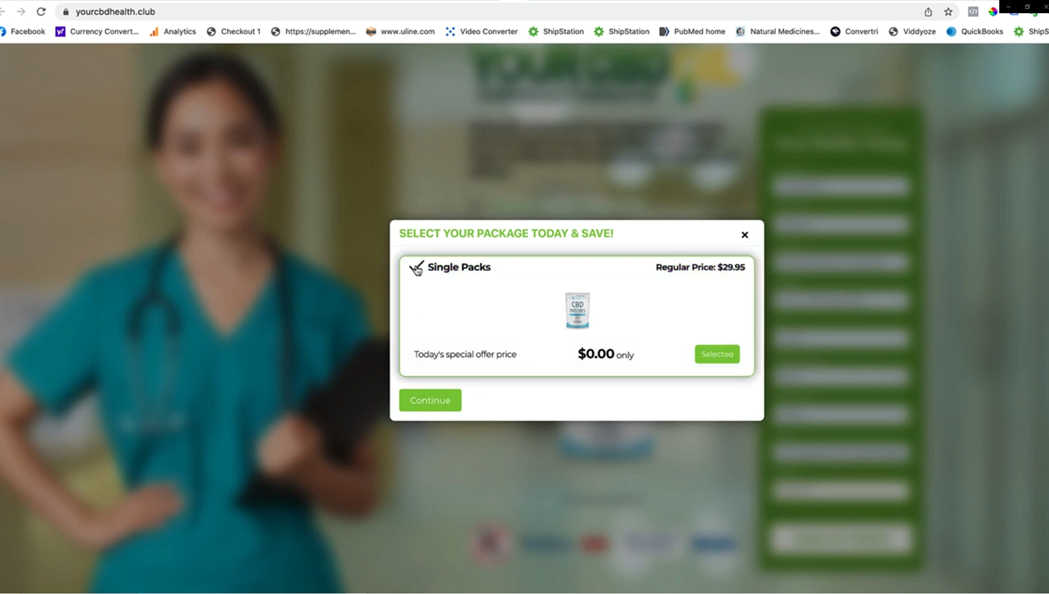
Okay, so now when I click this, you can see it just goes to that clear selection.
So that's that's how that works. Now likewise, if we continue on, if I just select this, if I continue on here, okay, we'll get the upsell product.
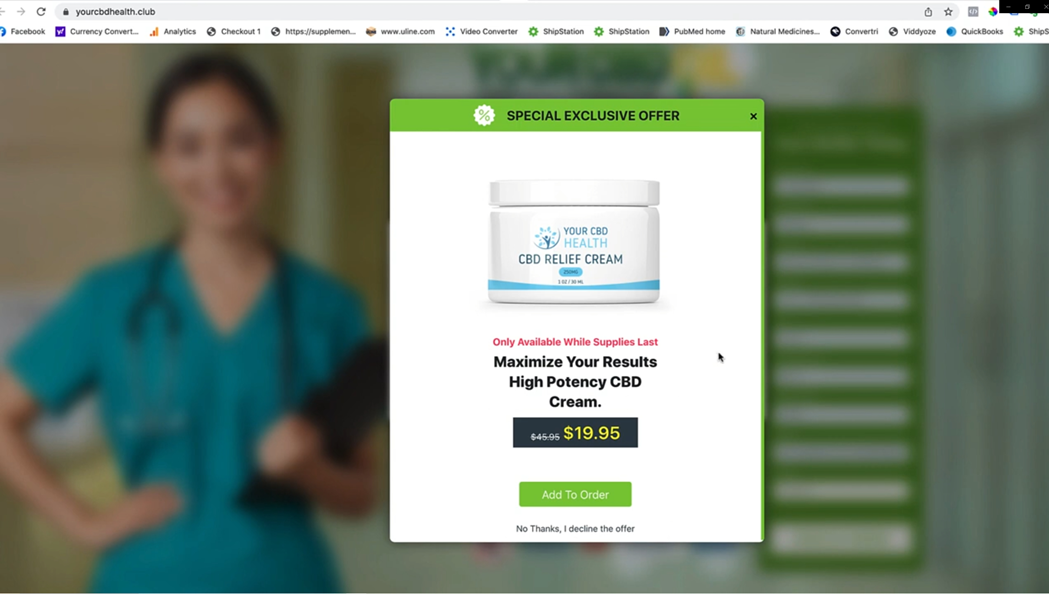
And we can affect the colours that are shown here for the text. And we can amend those down here. In our store settings, you can see the upsell one section here.

If I go into that, you can see that we can affect the text colour that's shown for upsell one product and we can do the same with upsell two as well.

So those are a couple of other areas where you can affect the text colour.
So that's it for this tutorial guys. I hope you found that useful. If you have any questions or concerns, please reach us at support@tinybrander.com Thanks a lot. Bye bye